

How It Works
Setup takes about two minutes. Here's what the process looks like, step by step.
Sign in with your Keywords Everywhere API key and you'll land here. Just enter the website you want to track and the brand name to use in your reports.
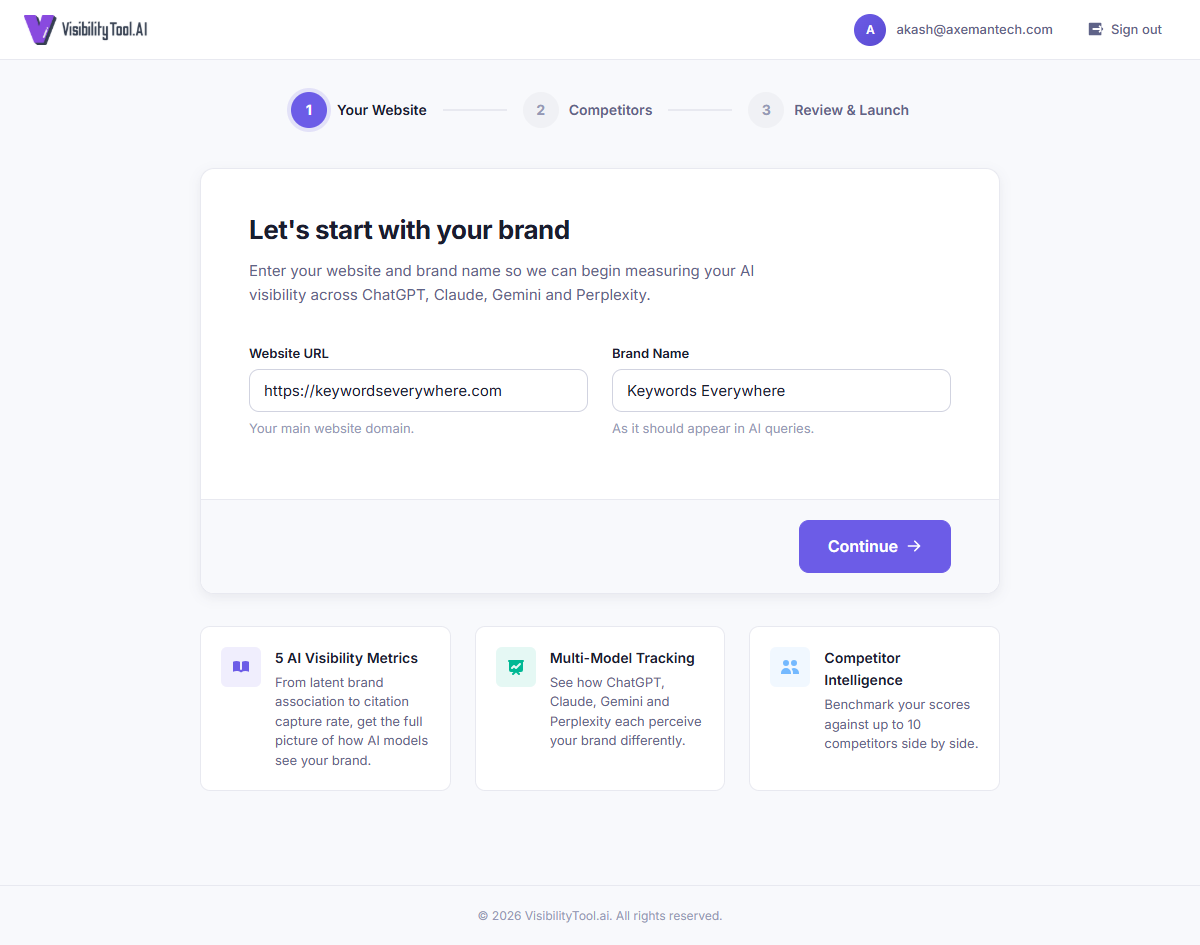
- Enter your full website URL (for example, https://keywordseverywhere.com).
- Add your brand name exactly how you want it to show up in your reports.
- Hit Continue and you're on to the next step.
Now add the competitors you want to benchmark against. You can include up to 10. These are the brands your AI visibility scores will be compared to.
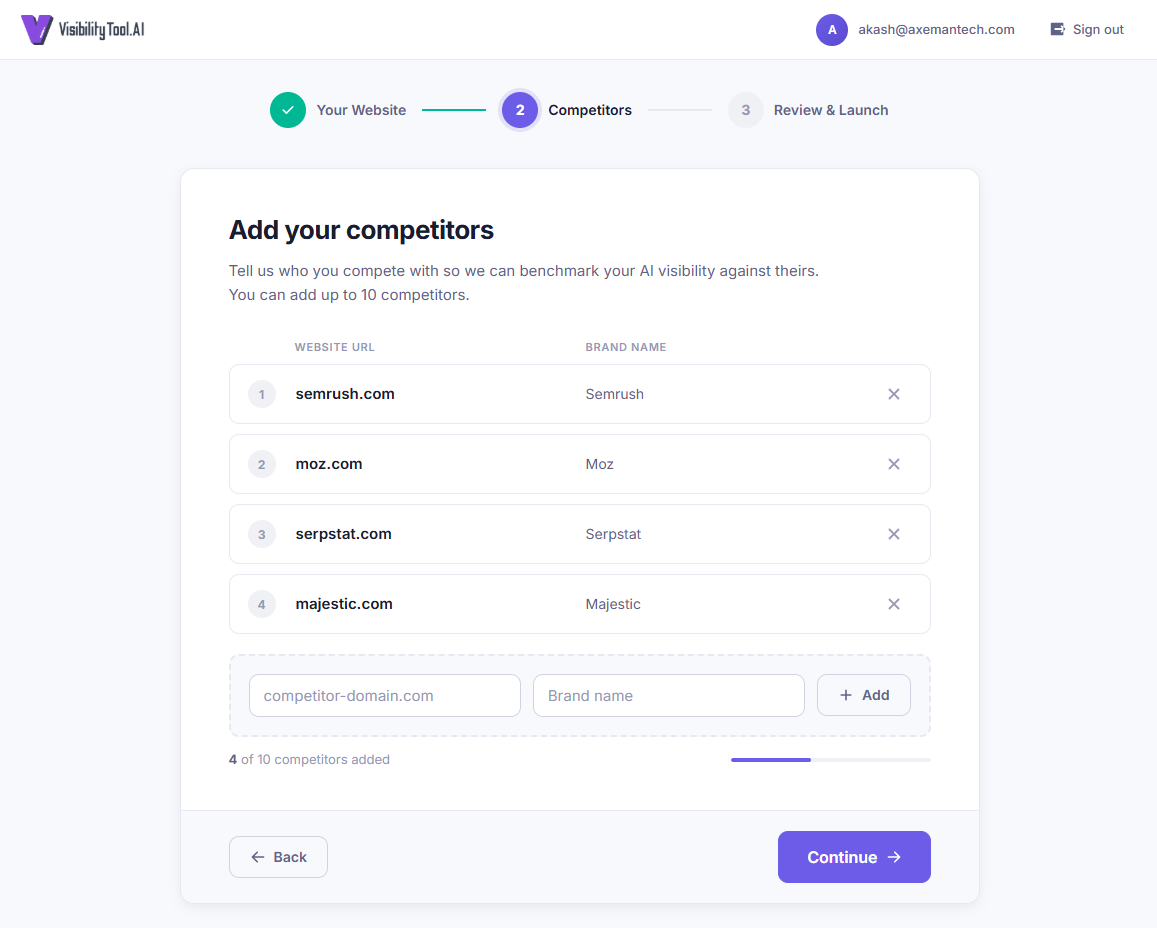
- Type a competitor's URL and brand name, then click + Add to drop them into your list.
- You get up to 10 competitor slots. A progress bar shows how many you've used.
- Changed your mind? Click the X next to any competitor to remove them.
- More competitors means richer comparison data. Add as many as you can.
This is your final check before the analysis kicks off. You'll see your brand details, the four LLM models being tested, and your full competitor list. You can edit any section before you launch.
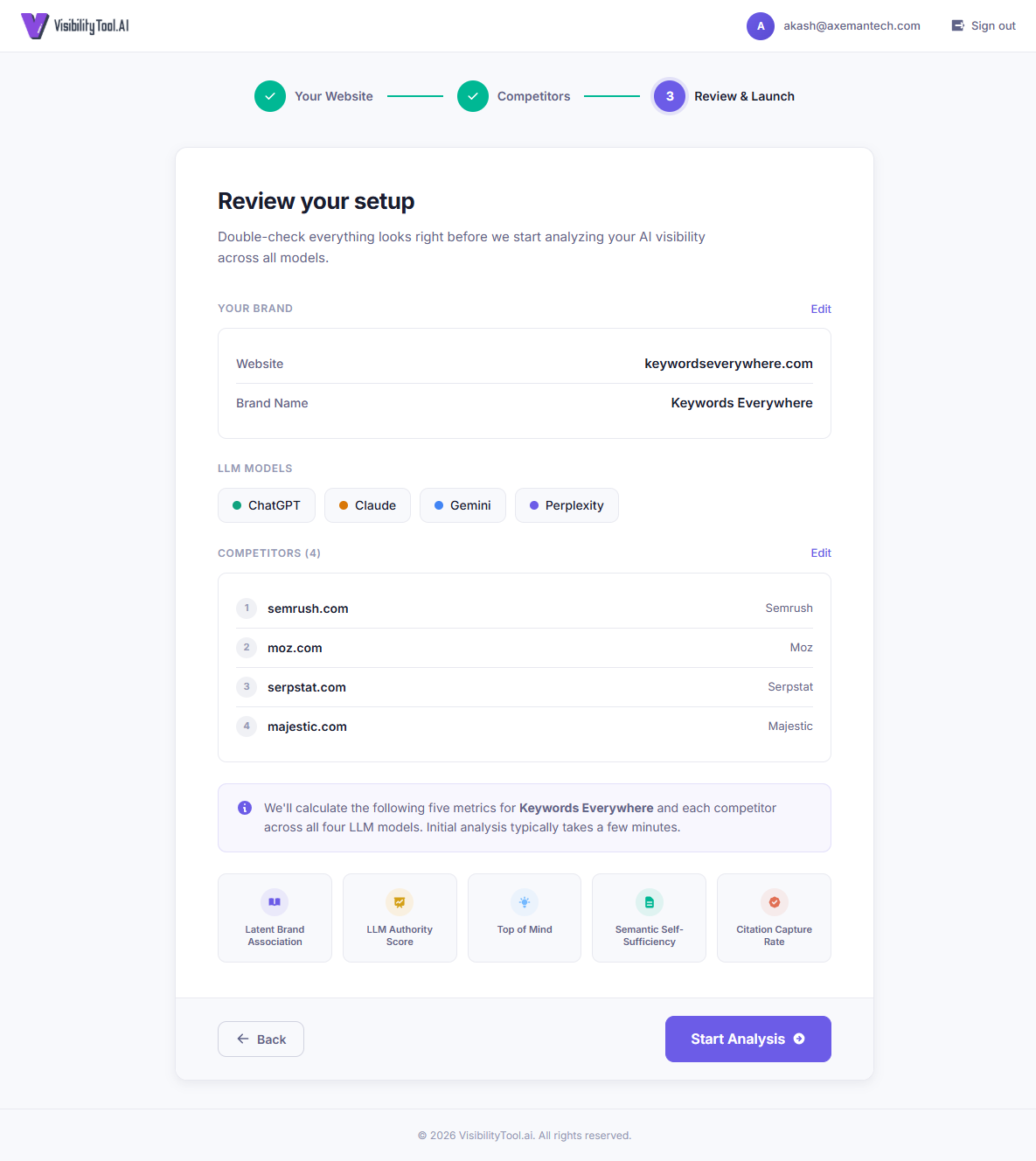
- Double-check your brand name, website URL, and competitor list.
- Your brand gets analyzed across four LLM models: ChatGPT, Claude, Gemini, and Perplexity.
- Need to change something? Click Edit next to any section to go back.
- When everything looks good, click Start Analysis. The first run usually takes a few minutes.
Once the analysis finishes, you'll land on your dashboard. The "My Brand" view gives you your overall AI Visibility Score, five individual metric scores, and a per-model breakdown so you can see how each LLM perceives your brand.
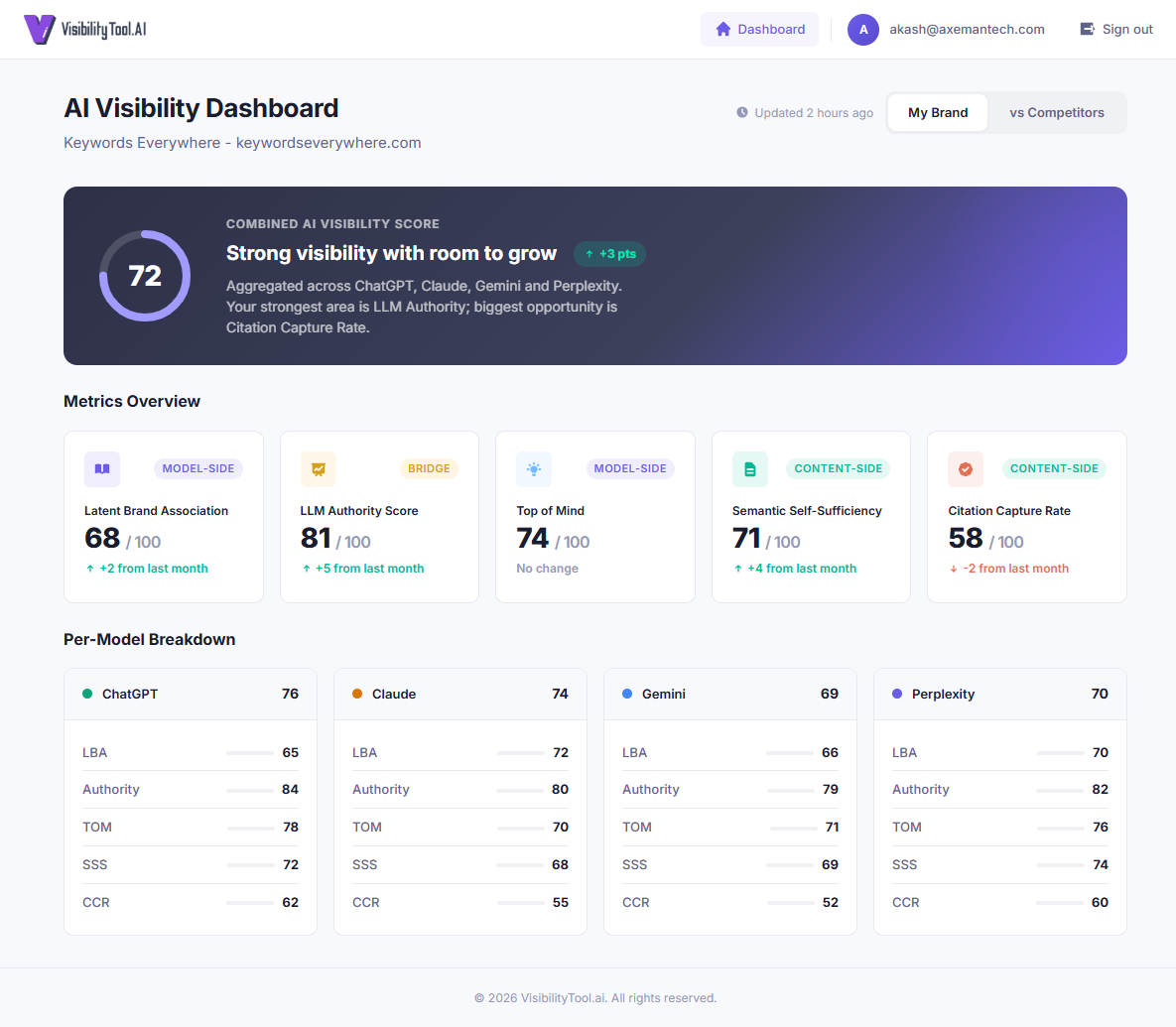
- The gradient hero card at the top shows your overall score out of 100.
- You get five metric cards: Latent Brand Association, LLM Authority Score, Top of Mind, Semantic Self-Sufficiency, and Citation Capture Rate. Each one shows your score and a badge telling you if it's model-side, content-side, or a bridge metric. Learn what each metric means.
- The per-model breakdown shows how ChatGPT, Claude, Gemini, and Perplexity each score your brand on their own.
- Use the My Brand / vs Competitors toggle at the top to flip between views.
Switch to the "vs Competitors" view and you'll see exactly how your brand stacks up. There's a ranked table sorted by overall score, plus a bar chart that compares you against the competitor average for each metric.
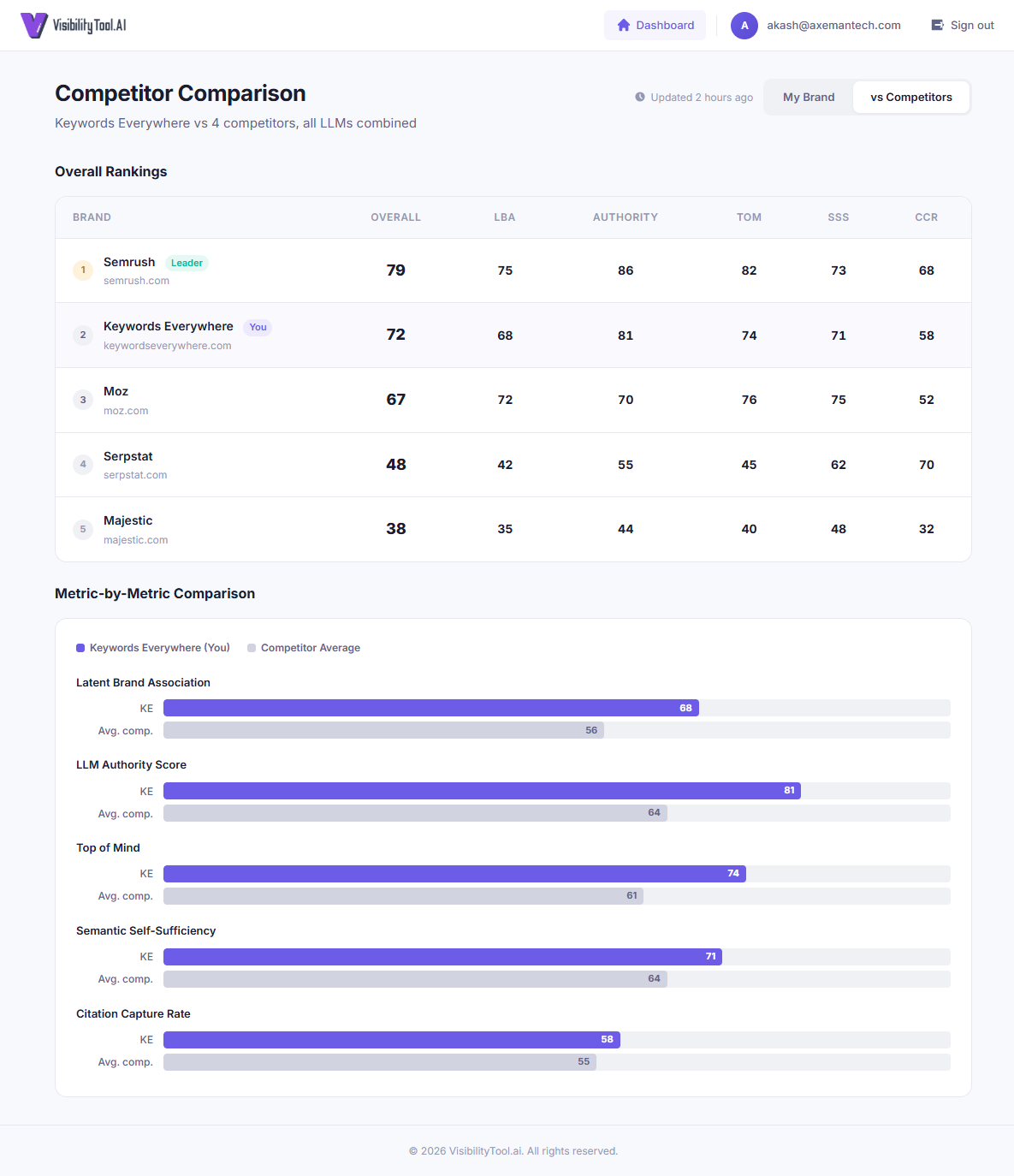
- The ranked table sorts every brand by overall AI Visibility Score. Your brand is highlighted so you can spot it instantly.
- The bar chart makes it visual: your brand (purple) vs. the competitor average (gray) across all five metrics.
- If your purple bar is shorter than the gray one, that's a metric where you're falling behind. You'll know exactly where to focus.
Click any metric card on your dashboard to open the detail view. Here you'll see your score across each LLM, the brand associations the models have learned, and how your competitors score on the same metric.
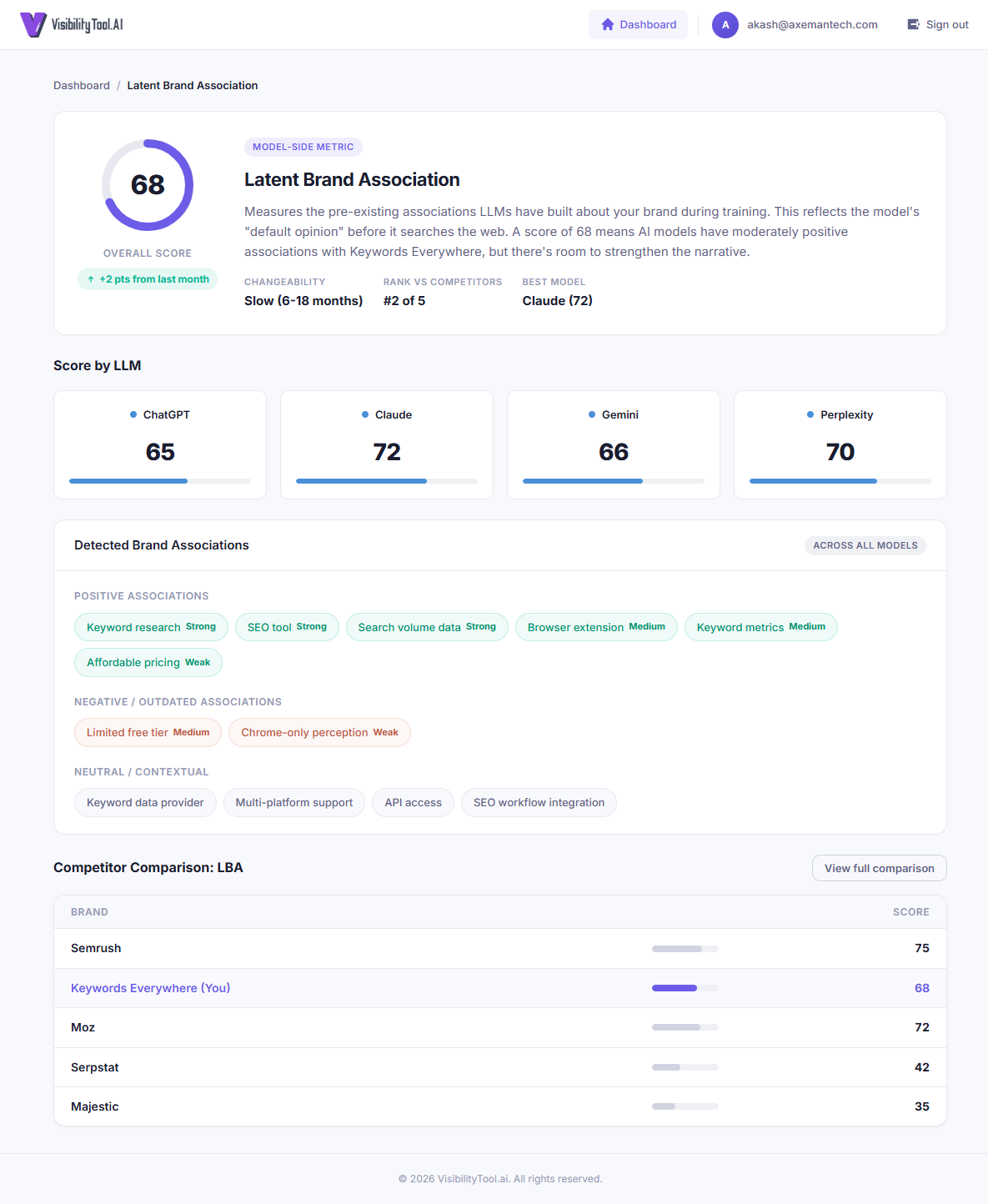
- The score ring shows your overall score for this metric, along with key details like changeability, your rank, and your best model.
- Per-model score cards let you spot which LLMs see your brand differently. A low score on one model tells you where to focus your content optimization.
- Brand associations are sorted into positive (green), negative/outdated (red), and neutral (gray) tags. This is where you see exactly what each model "believes" about your brand.
- The competitor mini-table at the bottom shows how every competitor scores on this same metric, so you know exactly where you stand.